
Getting Started with
Horilla Cloud

Follow these simple steps to launch your HRMS or CRM on Horilla Cloud in minutes.

01

Visit Horilla Cloud

Open the Horilla Cloud website to explore HRMS and CRM cloud services.
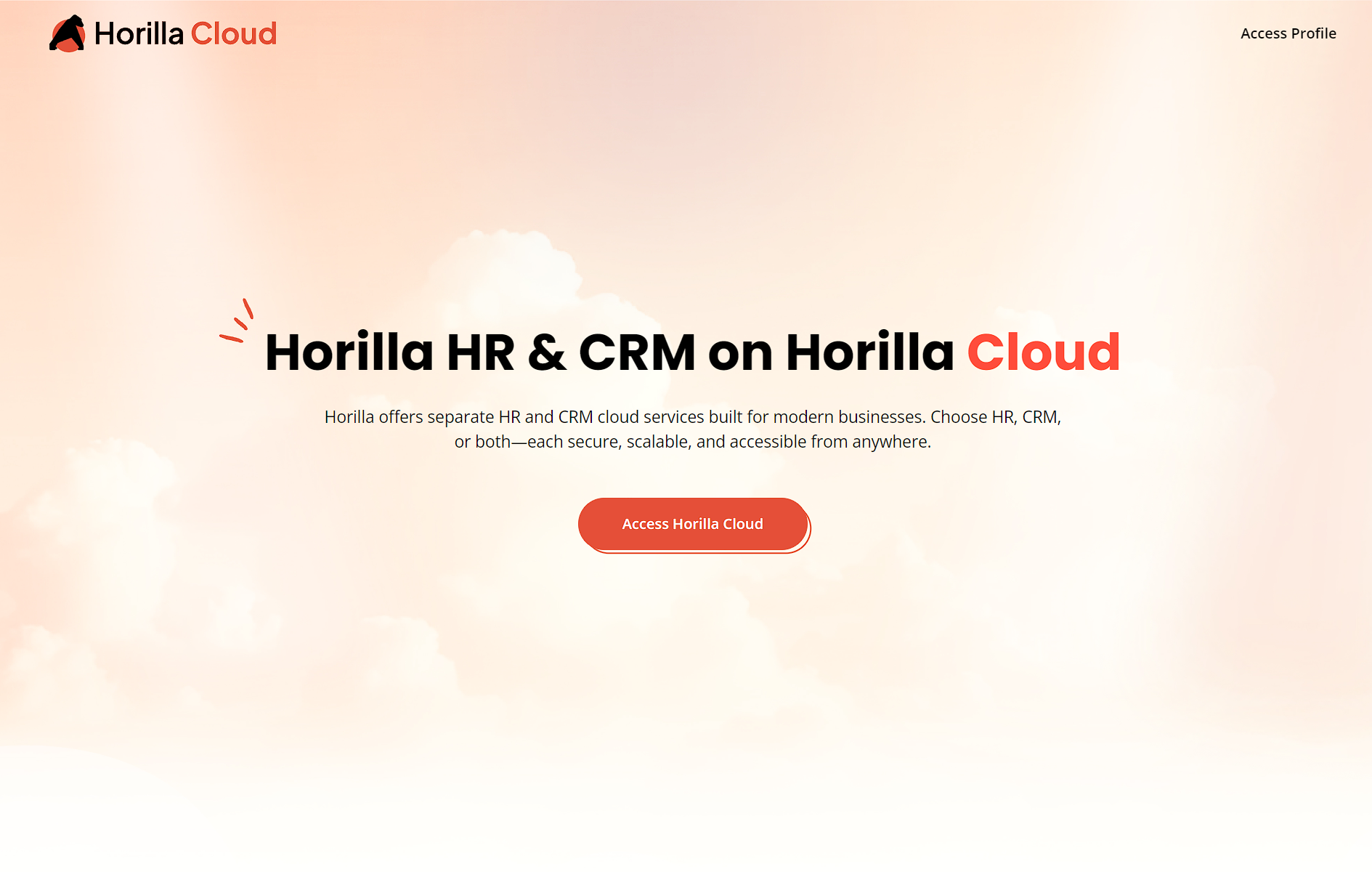
  • Choose HRMS, CRM, or both
  • Secure and cloud-hosted
  • Start with a free trial
Horilla Cloud Home Page
02

Sign In or Create an Account

Log in using your email and password or continue with Google sign-in.
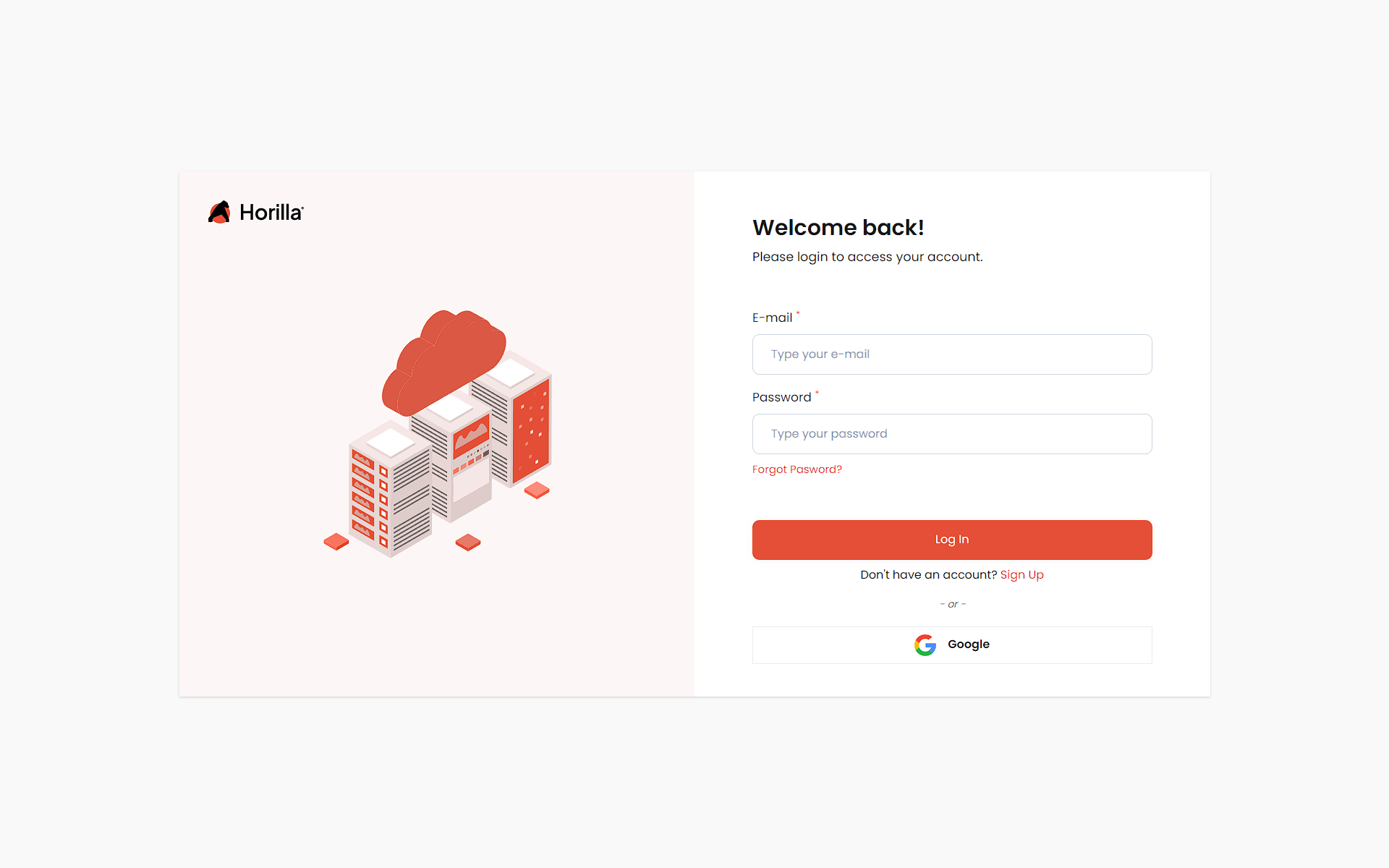
  • Email & password login
  • Google sign-in supported
  • Secure authentication
Horilla Cloud Login Page
03

Select Your Service

Choose which service you want to deploy on Horilla Cloud.
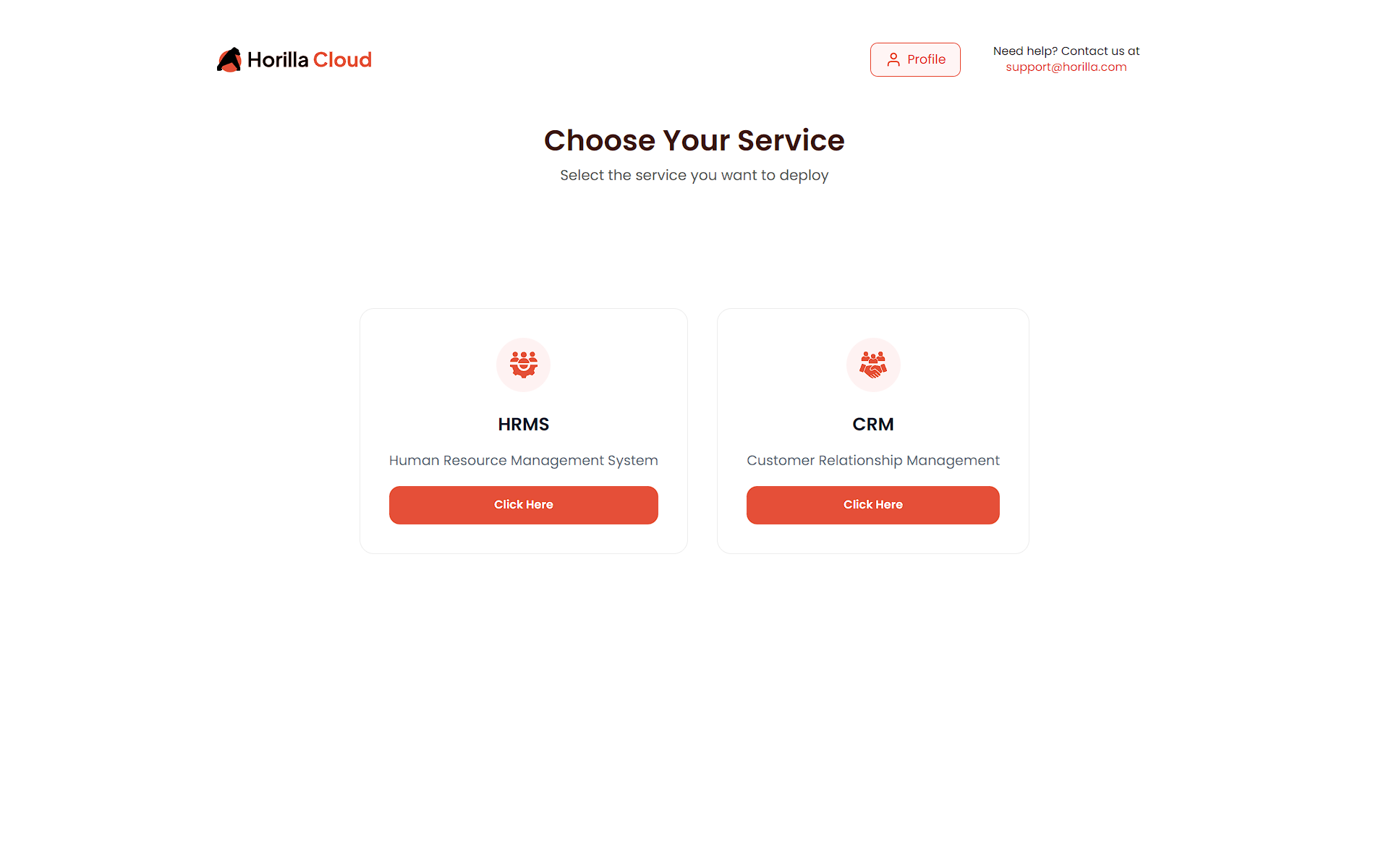
  • HRMS – Employee, payroll, attendance & HR operations
  • CRM – Leads, customers & sales management
Choose HRMS or CRM
04

Choose a Subscription Plan

Start with a free trial or select a paid monthly plan.
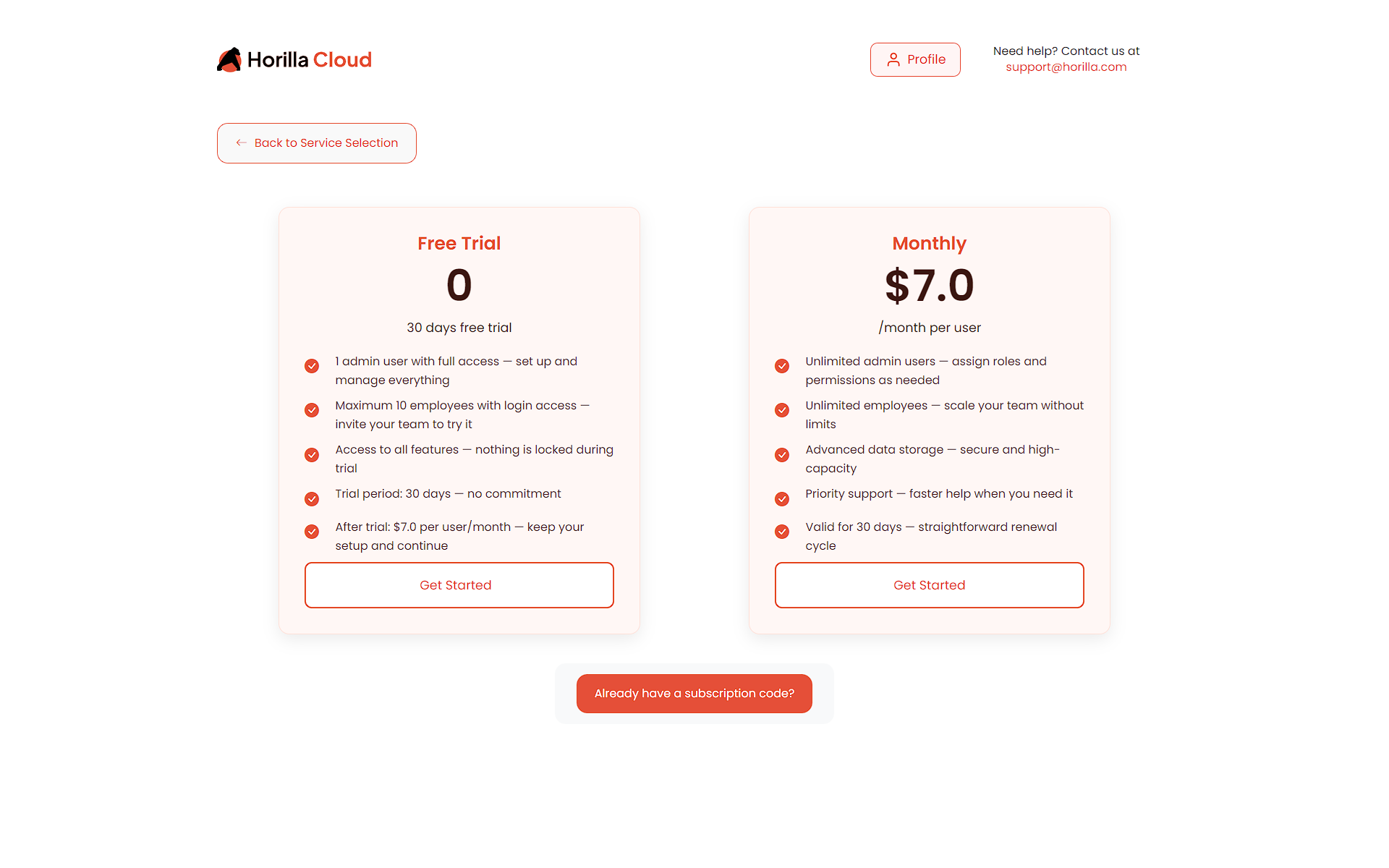
  • 30-day free trial available
  • Simple per-user pricing
  • No feature restrictions during trial
Subscription Plan Selection
05

Create Your Instance

Configure your Horilla Cloud instance and start using the platform.
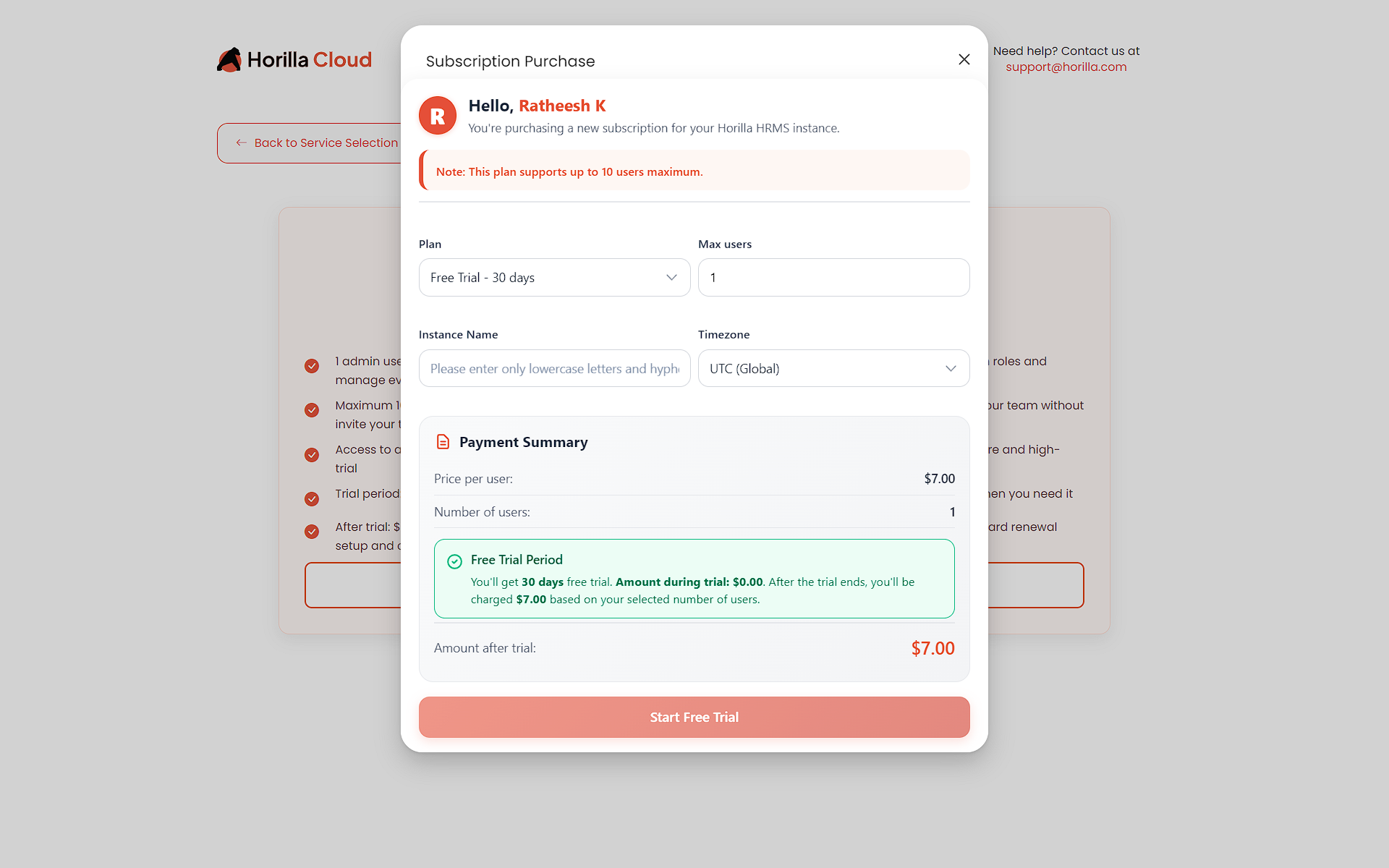
  • Choose instance name
  • Select timezone
  • Set number of users
During the free trial, you will not be charged. Billing starts only after the trial ends.
Create Instance & Start Free Trial
06

Complete Payment Details

Enter your payment information to proceed with your chosen plan.
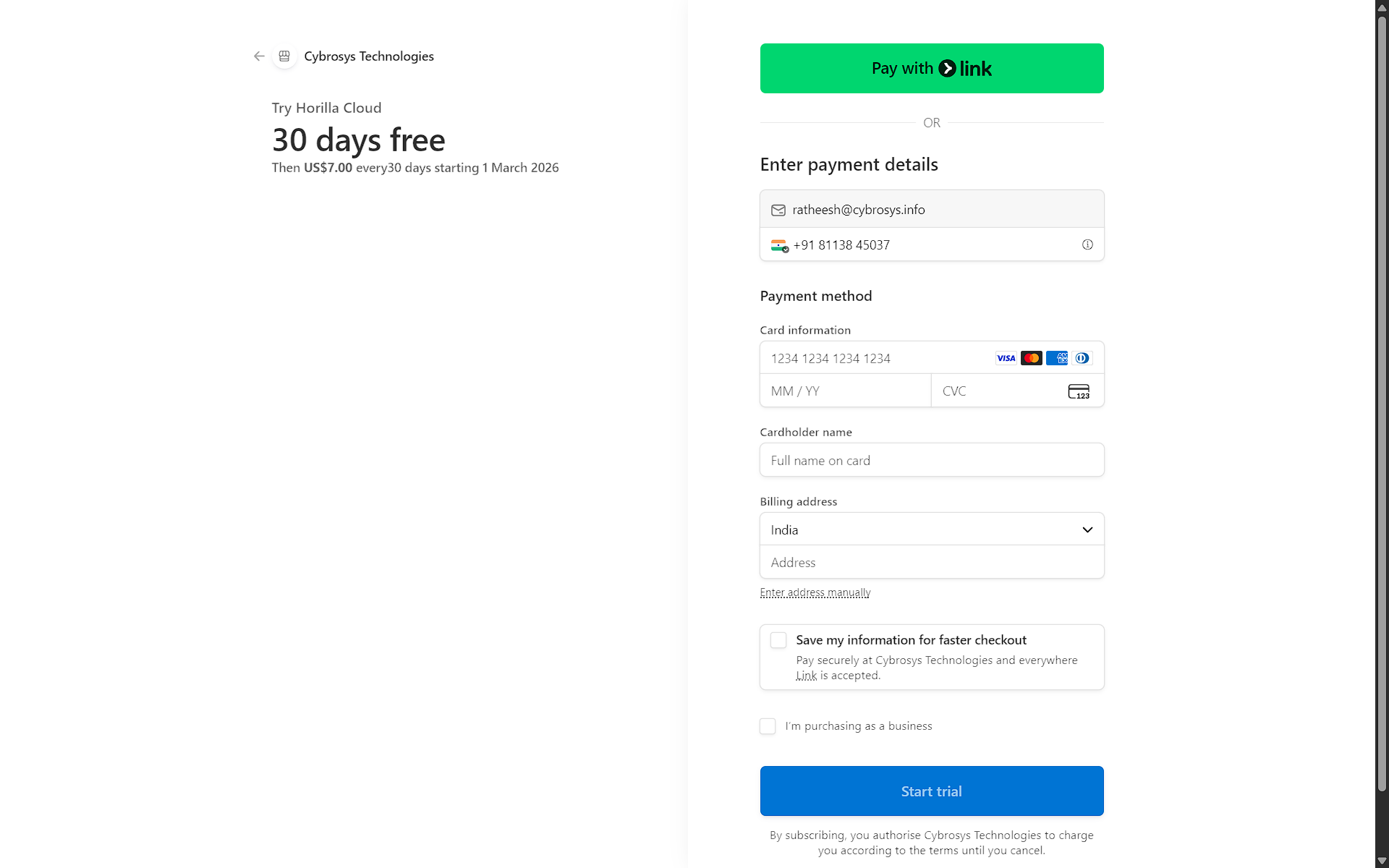
  • Enter email and phone number
  • Add card information securely
  • Provide billing address
  • Option to pay with Link for faster checkout
For free trial users: Your card will only be charged after the 30-day trial period ends. You can cancel anytime before the trial expires.
Payment Details Page
07

Instance Creation Progress

After completing payment, your Horilla Cloud instance begins setup automatically.
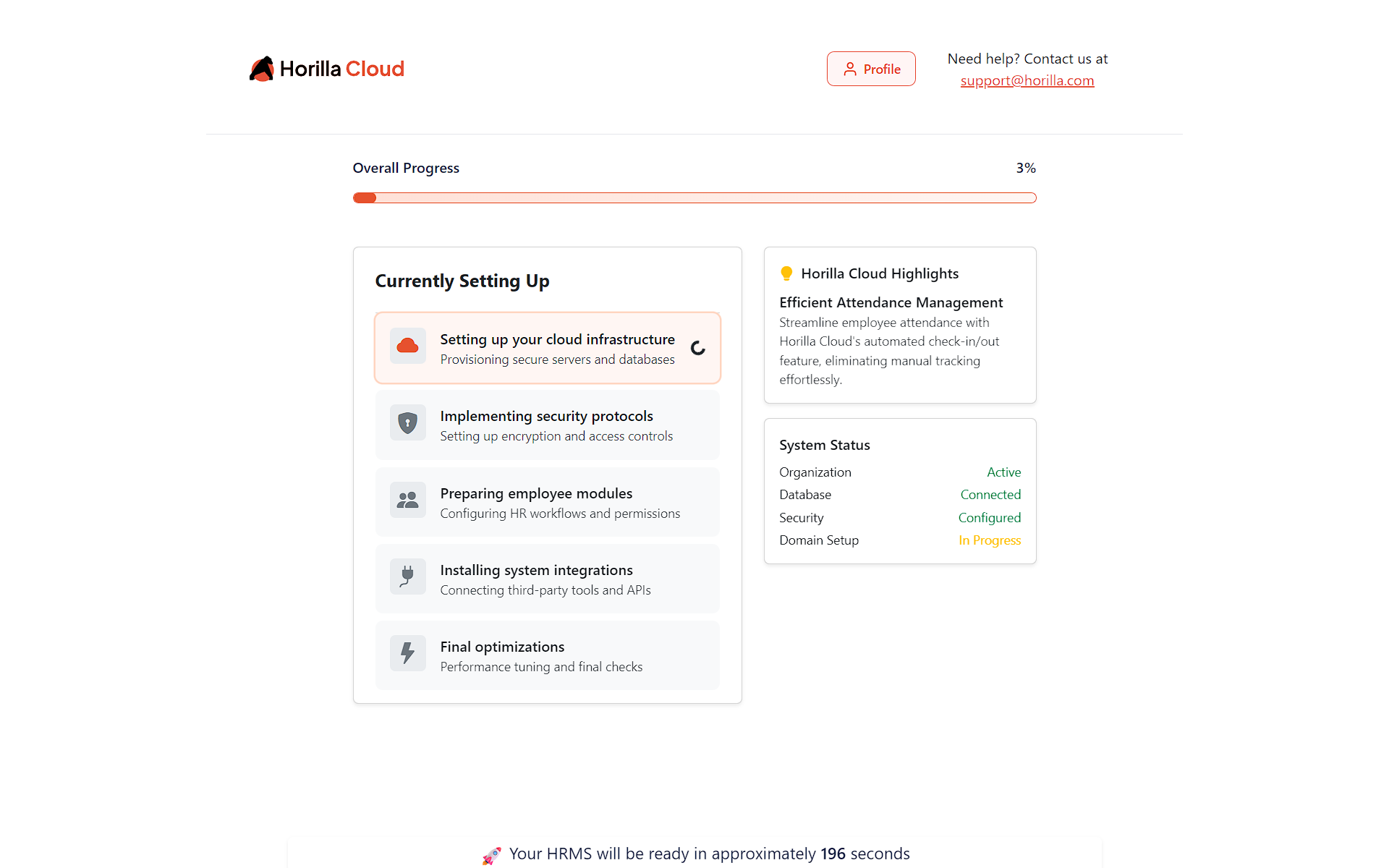
  • Cloud infrastructure provisioning
  • Security protocols implementation
  • Employee modules preparation
  • System integrations installation
  • Final optimizations and checks
Instance creation typically takes 3-5 minutes. You don't need to wait on this page - you can navigate to your profile to view the progress or access your dashboard once setup is complete.
Instance Creation Progress Screen
08

Manage Your Horilla Cloud Instance

After creating your instance, you will be redirected to the Horilla Cloud Dashboard.
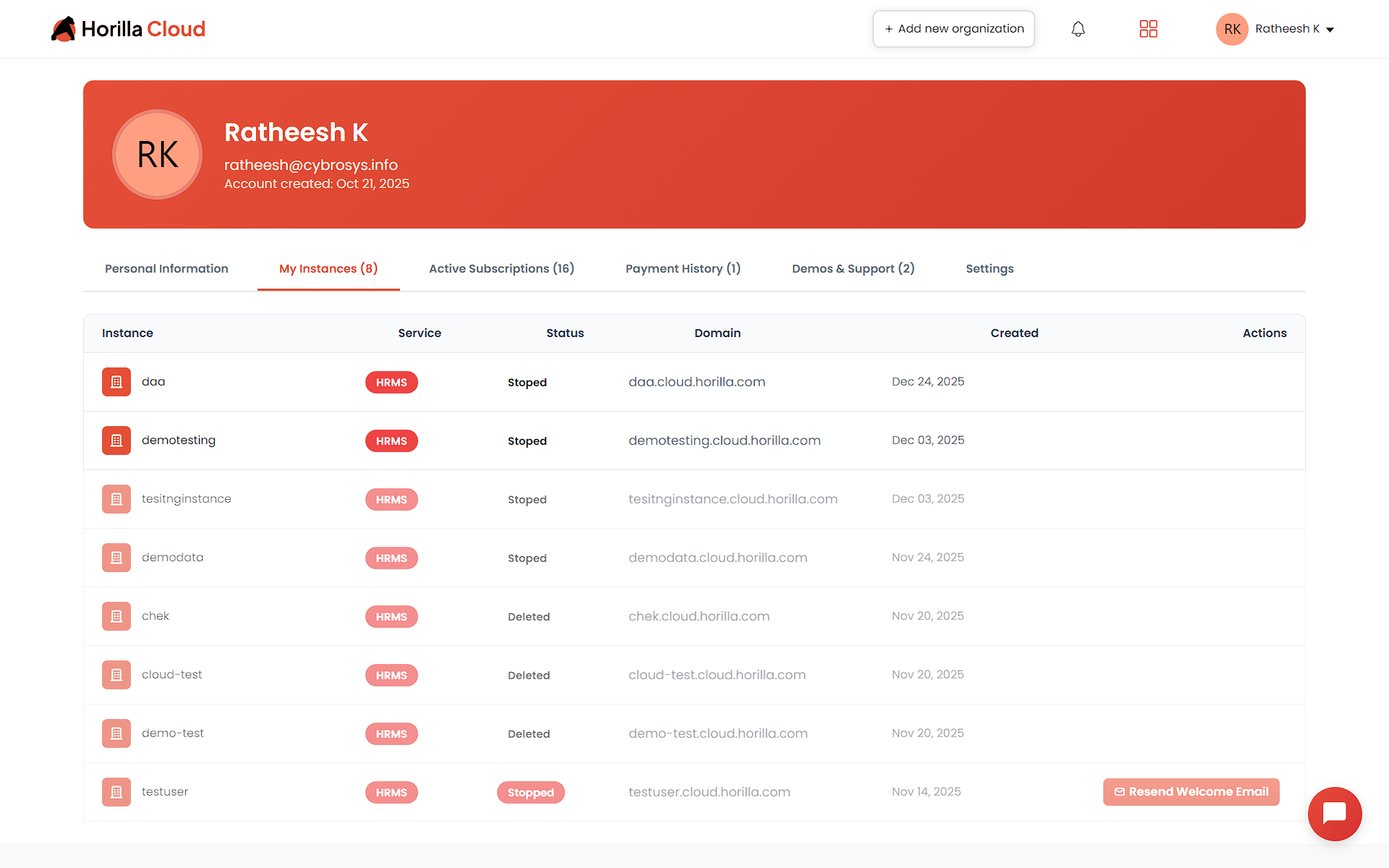
  • View all created HRMS / CRM instances
  • Check instance status
  • Access your instance using the assigned domain
  • Manage subscriptions and billing
  • Resend welcome emails to users
  • Create new organizations or instances
Each instance runs independently with its own domain, users, and data.
Horilla Cloud Instance Management Dashboard

Ready to Get Started?

Start Free Trial Book Demo